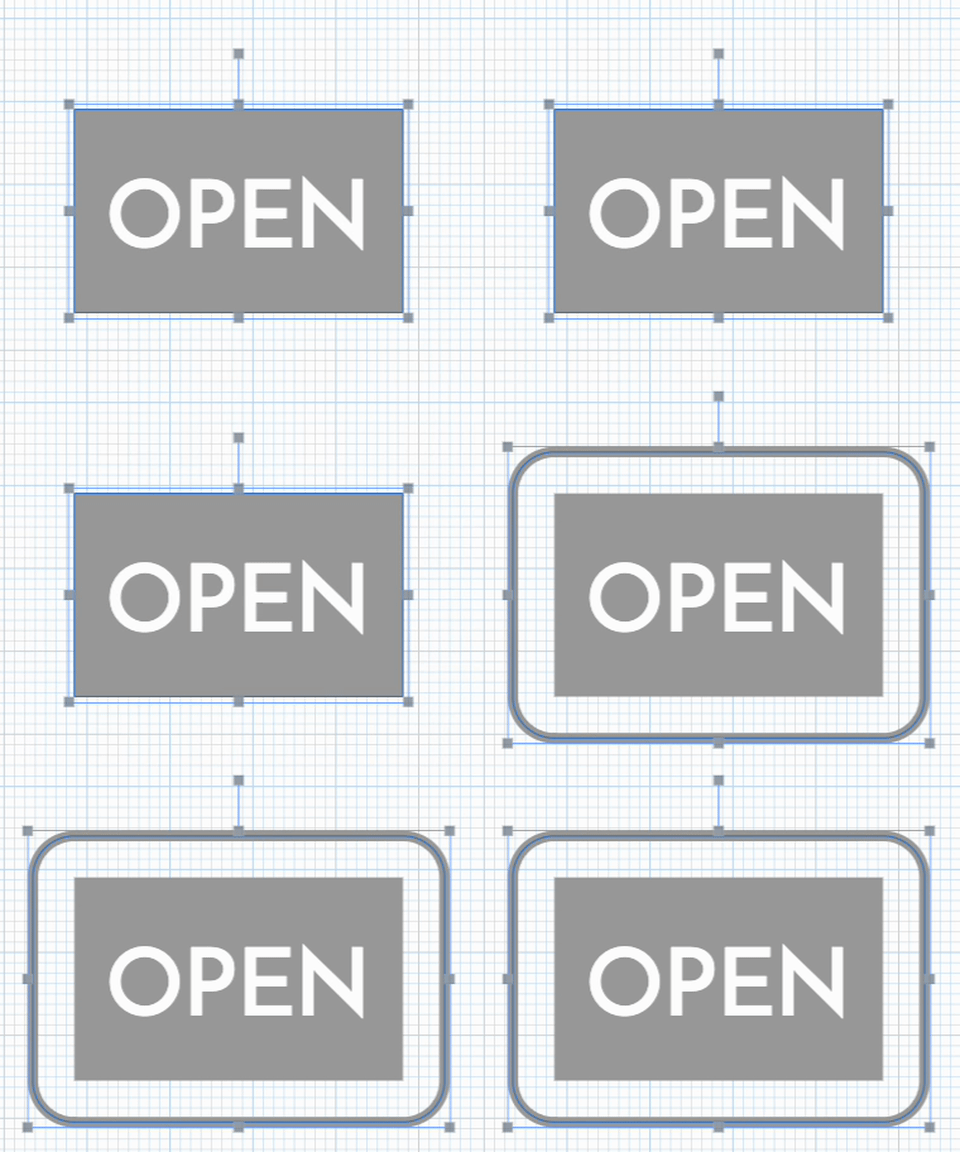
Easel Pro is now easier to align your designs to your material! You are now able to set your X/Y zero location in either the front left corner of the material or the center of the material.
Until now, to make sure your design would carve in the center of the material and to set the carve to the center, you had to use a complex workaround by moving your design into negative space. Now it is as easy as clicking a button in the material menu.
For easy centered carves: - Make sure your design is centered to the material - Change the X/Y from Front Left Corner to Center in the Material Menu dropdown - Notice that the grid changes values - Notice that toolpaths start and stop in the center of the material - Machine Parking is compatible with X/Y center carves - Tiling must be done with X/Y center in the Front Left Corner
Overview Animation for Carving from center

Animation which shows the grid change in the design pane

Animation which shows how to change from Front Left Corner to Center in Material Pane

Digital Readout for relative machine position is now available to Pro Users. Open the jog menu, carve walkthrough or machine inspector to view the machine position.
In order for the position to be read, you will need to have homed your machine!

How it works

New Machine Jog Controls are now available to all users. The new controls have an improved layout and easy homing built in for compatible machines. Don’t worry we made sure you can keep using the old layout if you still love it with a simple toggle.
Changes Include
Overview of New Controls

Keyboard Shortcuts

Machine Controls in the Carve Walk though

New controls for grouping and ungrouping of shapes in Easel. This allows you to group multiple shapes together so that they move, resize, and rotate together letting you get the desired design quicker and easier in Easel.
You can access the grouping and ungrouping tools in the Edit menu, or with keyboard shortcuts:
Animation Overview:

Easel Pro users now have more control over their project labels than ever, right from the Projects Modal.
Create and delete labels from the dropdown.


Select one or more projects to assign and unassign labels in bulk.


Click a label to unassign it from a project.

Easel Pro now includes several new text effects to choose from, including Perspective Up & Down, Slant Left & Right, and Barrel:

The new Arc Up & Down effects stretch text around an elliptical arc:

We're excited to see how you use these in your projects. Got something you're proud of? Share it on the forum!
Introducing the ability to move the shape/cut panel. Now you can easily move the panel away from your work area and place it out of the way. This feature is available for all users immediately.

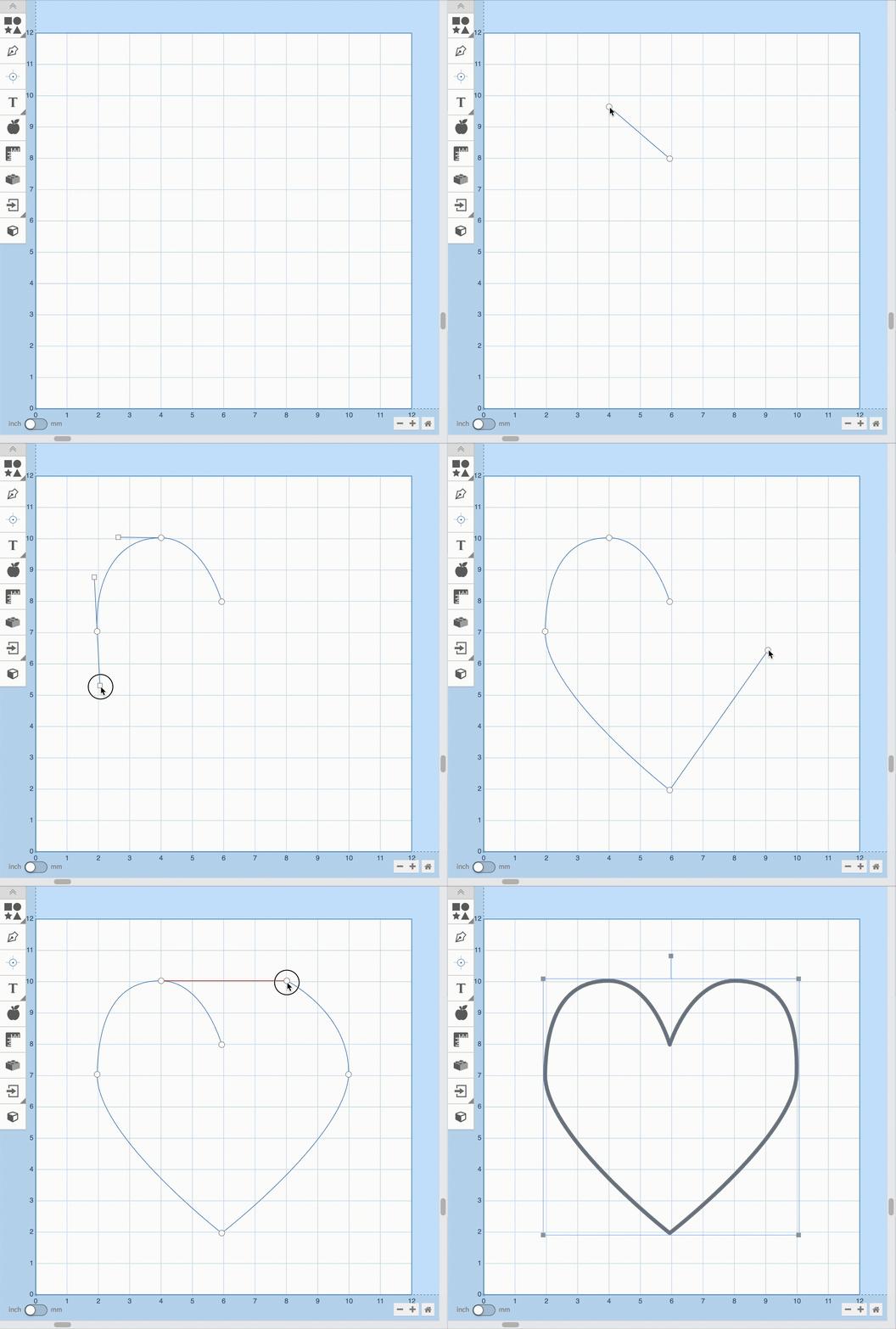
Display and edit precise coordinates in Edit Points mode.
e on the keyboard, double-clicking the shape, or clicking the edit button).
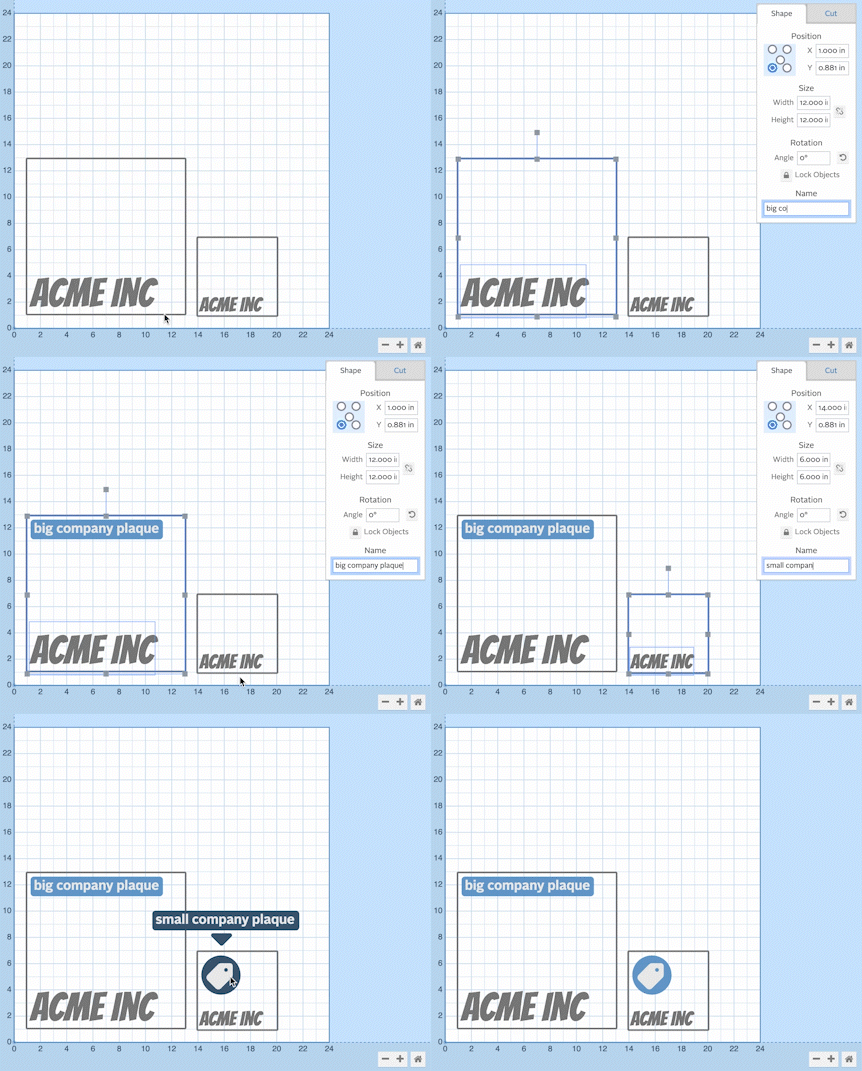
Lock and unlock specific shapes while designing in Easel to suit your workflow. Locked shapes will not move, rotate or scale. Locked text fields are uneditable. Ensure parts of your design don't accidentally change while working on other areas.
lock object icon to enable it for the selected volume(s).
Labels assigned to projects let you easily manage your projects. Each project can now be labeled to ease searching, organizing and keep track of your work.
To use the feature visit an Easel project. Upon clicking on the project name a new modal will appear where you can add labels to a project, create new labels and delete existing labels.

Visiting Easel all projects page lets you filter and search labels across your projects. Clicking a label under project name will show only the project with this label.

This feature is now live for all Pro users.