
Measure Tool
We are excited to introduce the Easel Measuring Tool! Here’s an in-depth overview of this new feature:
Read more →Product updates
New tools, apps, and improvements from the Easel team.
We are excited to introduce the Easel Measuring Tool! Here’s an in-depth overview of this new feature:
Read more →
We are pleased to announce an update to Easel Pro design capabilities: custom font uploads. This highly requested feature empowers you to seamlessly integrate your favorite fonts directly into Easel Pro for both design and carving.
Read more →
Our newest firmware update for the X-Carve Pro improves the response from the machine when the user pauses a carve. This firmware is available to all X-Carve Pro users. For access to this firmware and functionality, click the prompt that appears in the carve walkthrough.
Read more →
We have released a new toolbox to all users. This improves the interface and experience when managing bits, materials, and cut settings. All of the functionality of the previous toolbox is still there - and more has been added. Read on to learn more!
Read more →
We have released a new toolbox to Beta Testers to improve the interface and experience when managing bits, materials, and cut settings. The new toolbox is only available to users enrolled in Beta testing at this time.
Read more →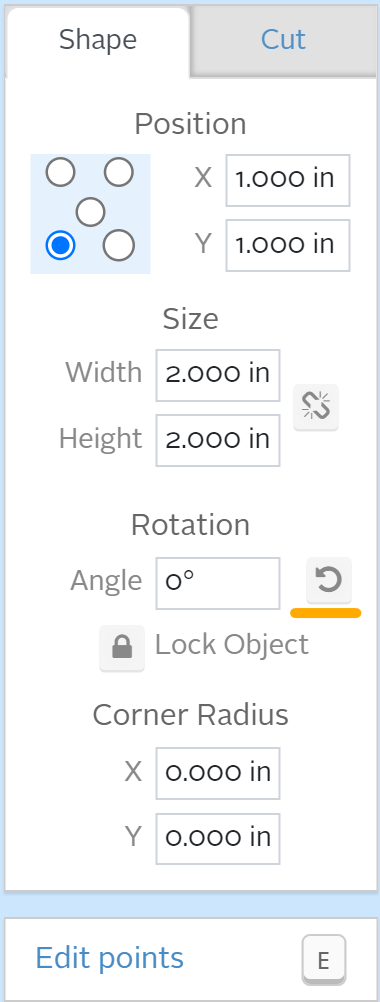
A quick rotate feature has been implemented for all Easel users. With a shape (or shapes) selected in the design view of Easel, the Shape window of the Cut/Shape modal now includes a button under “Rotation” that will rotate the selected shape(s) counter-clockwise with each press. No need to type in your degree measurements for simple 90-degree rotations!
Read more →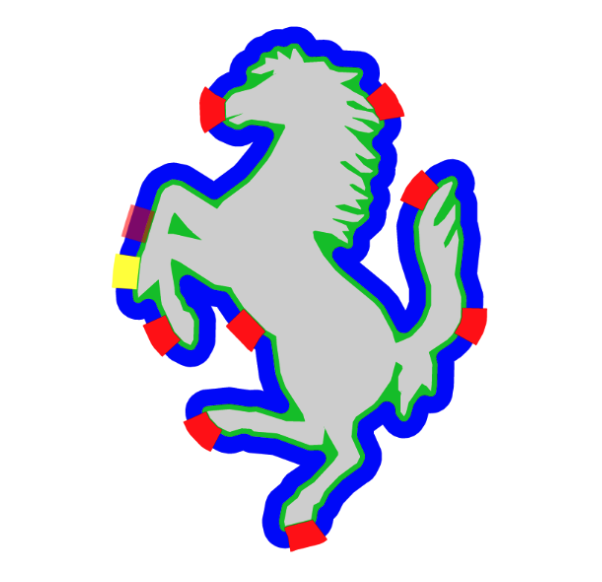
Easel Pro users are now able to edit the tab placement for their 3D Carves! When utilizing a full-depth cutout as their cut style, users can select the edit button next to “Use Tabs” to adjust the positioning of their tabs. This allows users to keep tabs away from hard to reach areas like corners or delicate areas of the relief. The tab quantity and dimensions for 3D projects will continue to be calculated by Easel.
Read more →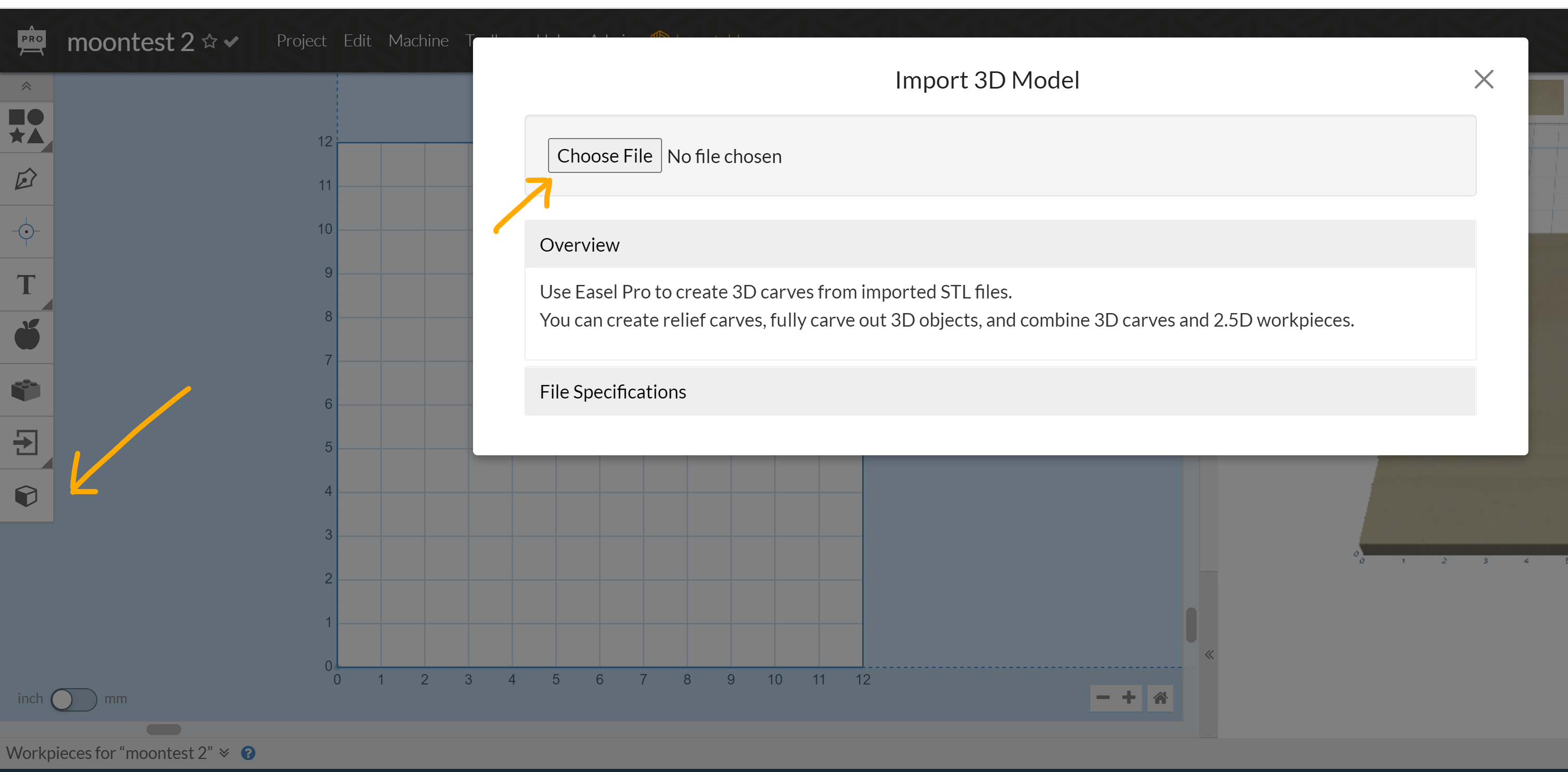
With 3D in Easel Pro you can easily carve beautifully detailed 3D relief carvings with a simple-to-use interface.
Read more →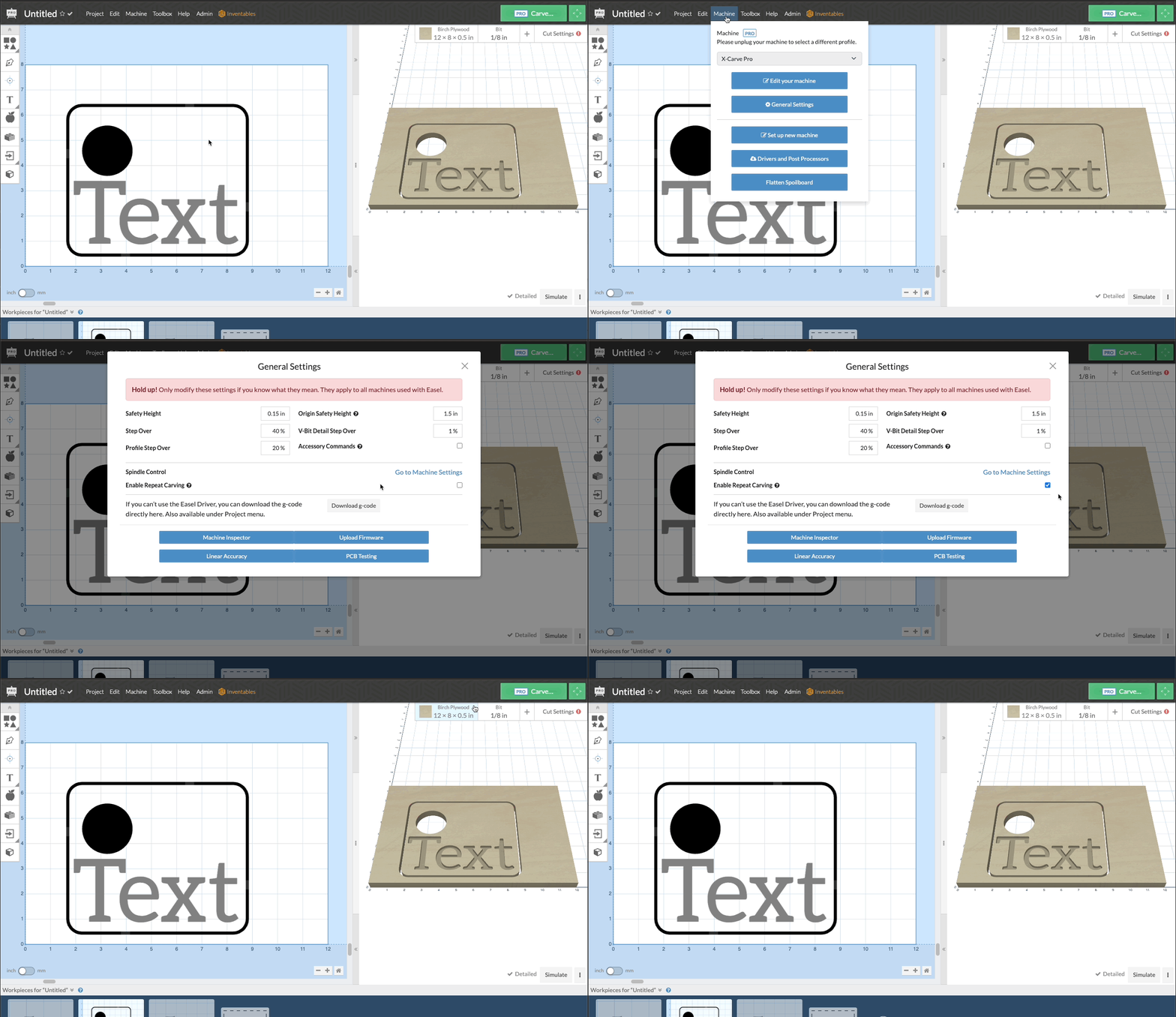
This is a workflow improvement that can have a major impact on repeated carvings. Now by enabling repeat carving under General Settings you can skip the zeroing and material positioning for any carve you plan to do multiple times in a row using the same position and bit.
Read more →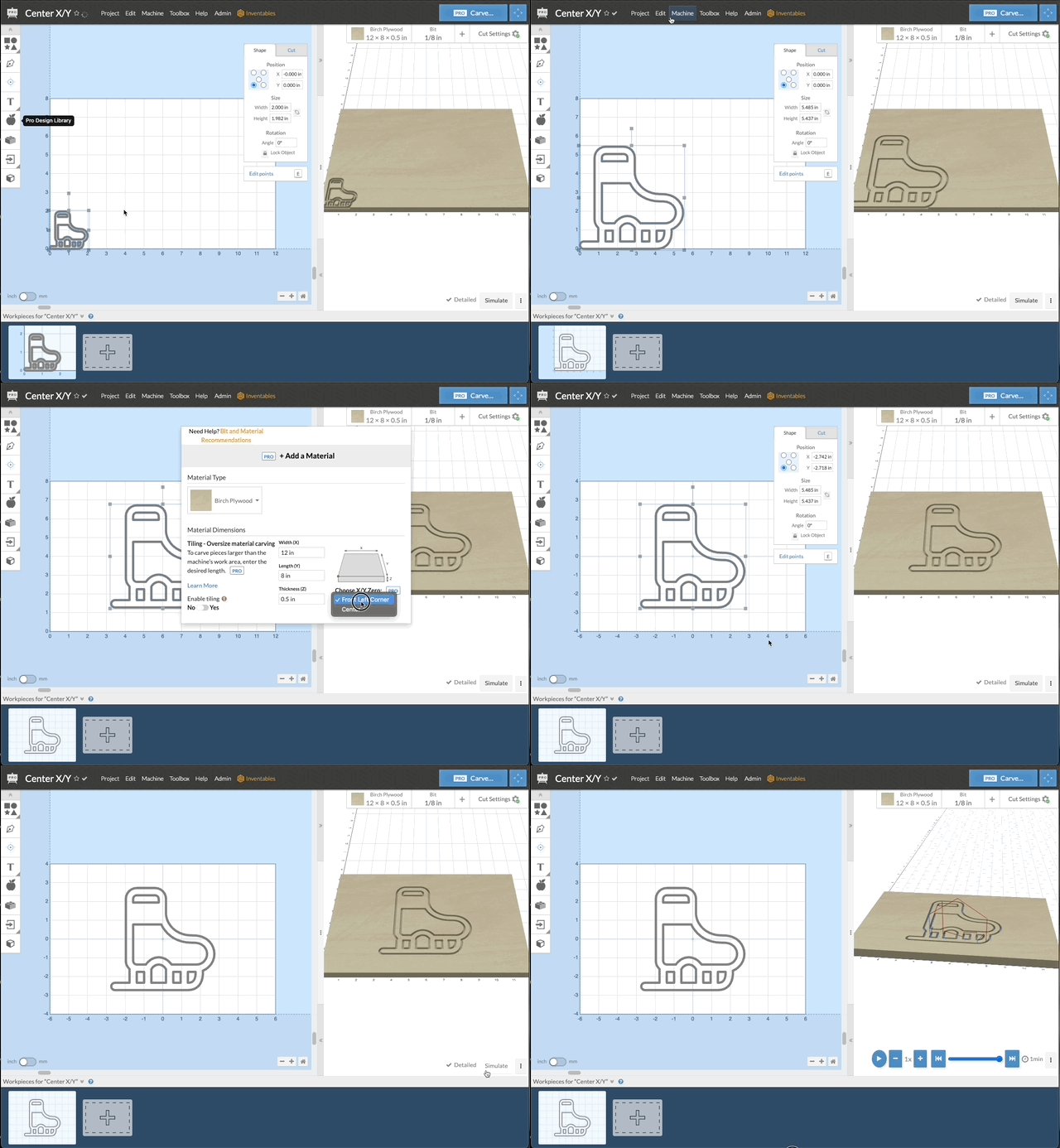
Easel Pro is now easier to align your designs to your material! You are now able to set your X/Y zero location in either the front left corner of the material or the center of the material.
Read more →