Adjust and edit your designs in Easel with more options. Add a point to an existing shape without having to re-create it with the pen tool.
How it works
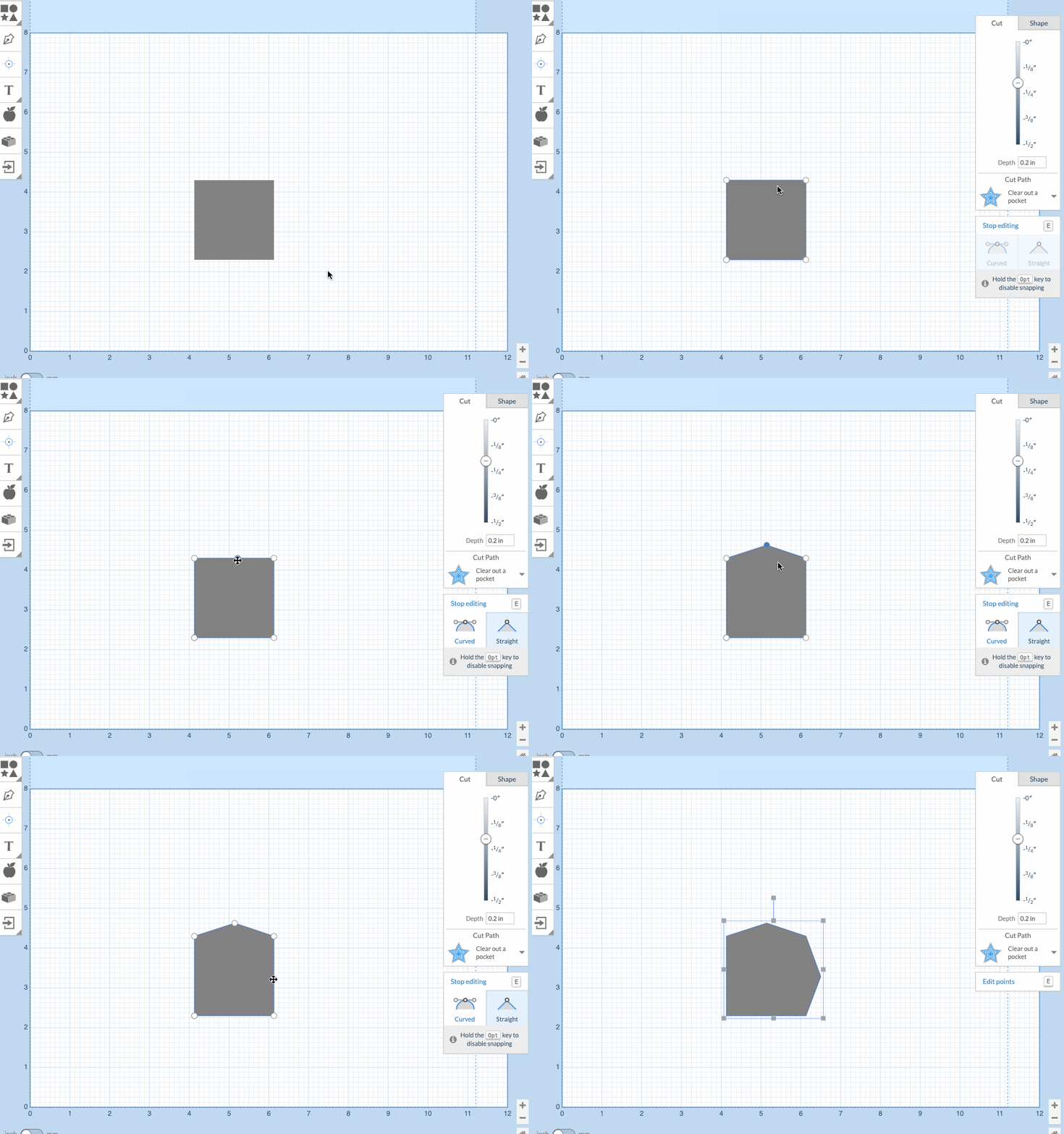
- Select your volume on the 2d editor.
- Enter edit mode (
eon the keyboard, double-clicking the volume or clicking the edit button). - Drag your cursor along the path of the shape and observe a potential point appear.
- Click on the location you would like to add the point.
- Drag/edit the new point as needed.
Issues
Working with extremely large or complicated shapes with a lot of points will degrade performance in Easel.
- Volumes with less than 1k points should receive no noticeable impact on performance.
- Volumes with 8k+ points will have up to a few seconds delay in the edit actions.