Customizable Ornament Template



Instructions
Open template and add text
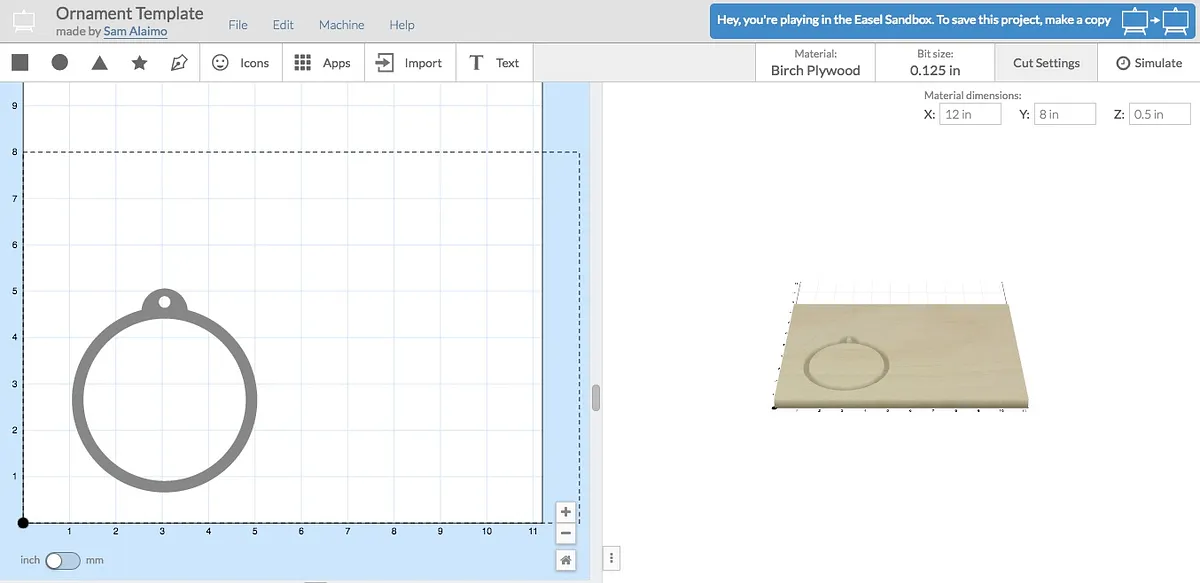
Click the "open in Easel" button to get the ornament template. Copy the template over to your projects. Name your new file.
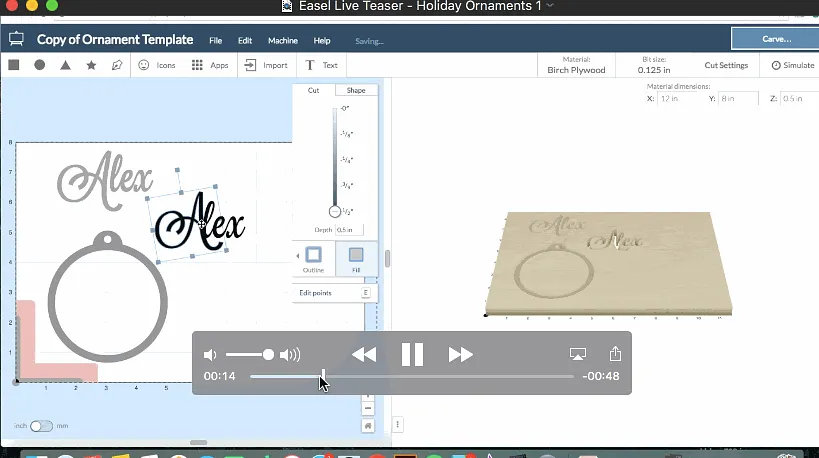
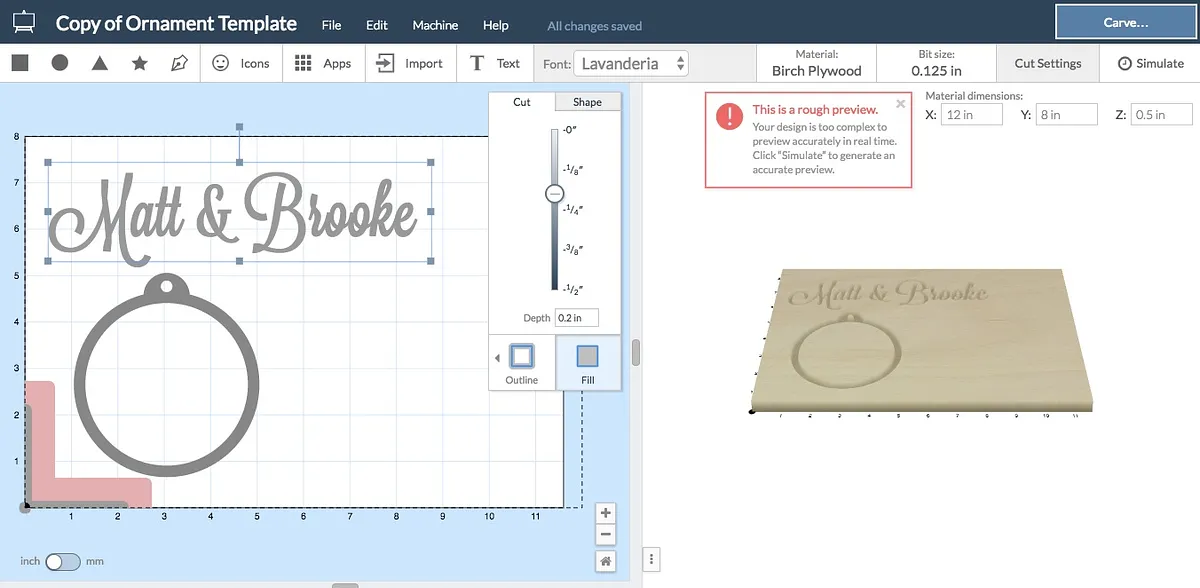
Use the text tool to pick a font and add the text you would like.
Estimated time: 1 minutes
Xploder app!
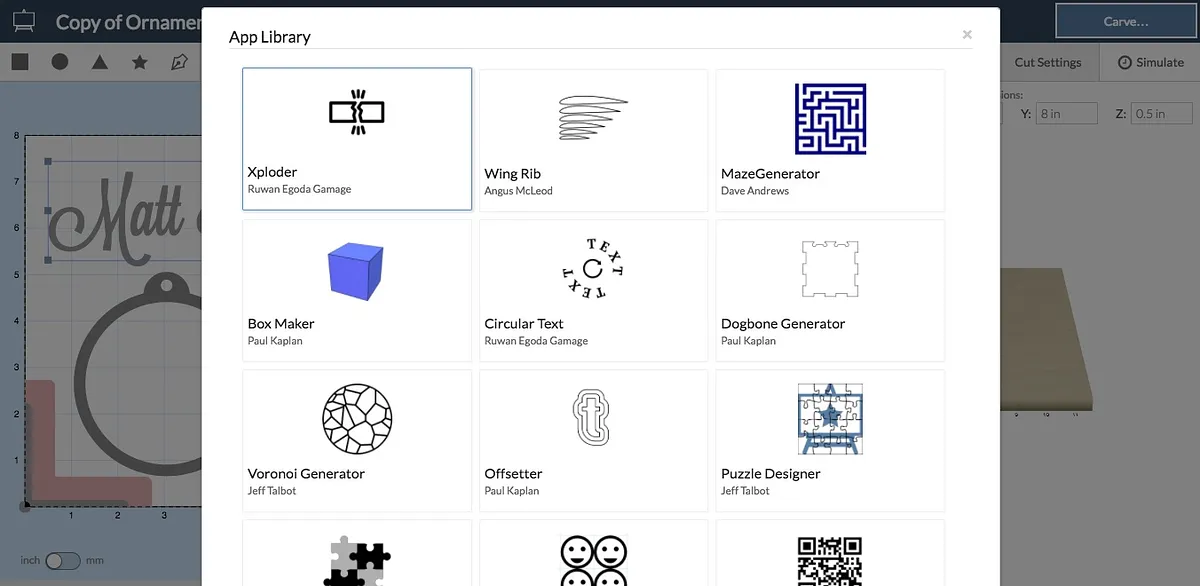
In order to make the text usable, we will need to use the "Xploder" app. This is a tool that turns text into shapes, so we can move the parts around. Highlight the text, click Apps, and select "Xploder".
You do not need to adjust the "gap" setting, click import. Once imported, delete the original text you created. Now, move the different sections of text to arrange them in the circle shape the way you would like.
You can use the icons or image import to add other elements other than text to the design.
Overlap your text, images, and ornament outline as fills to until you are happy with the design. I find it easiest to design with all fills and change to outlines later.
Estimated time: 1 minutes
Combine!
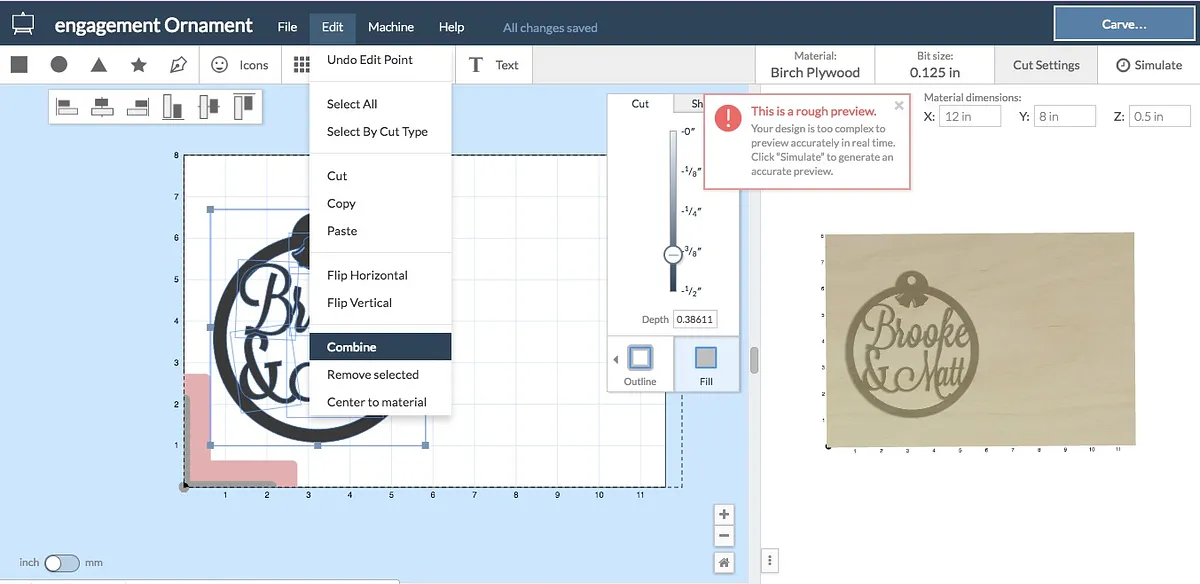
Once you have the overlapping elements arranged the way you like, highlight everything, make sure they are a filled shape, and click "edit" than " combine".
This should take the overlapping individual elements and make them into one shape!
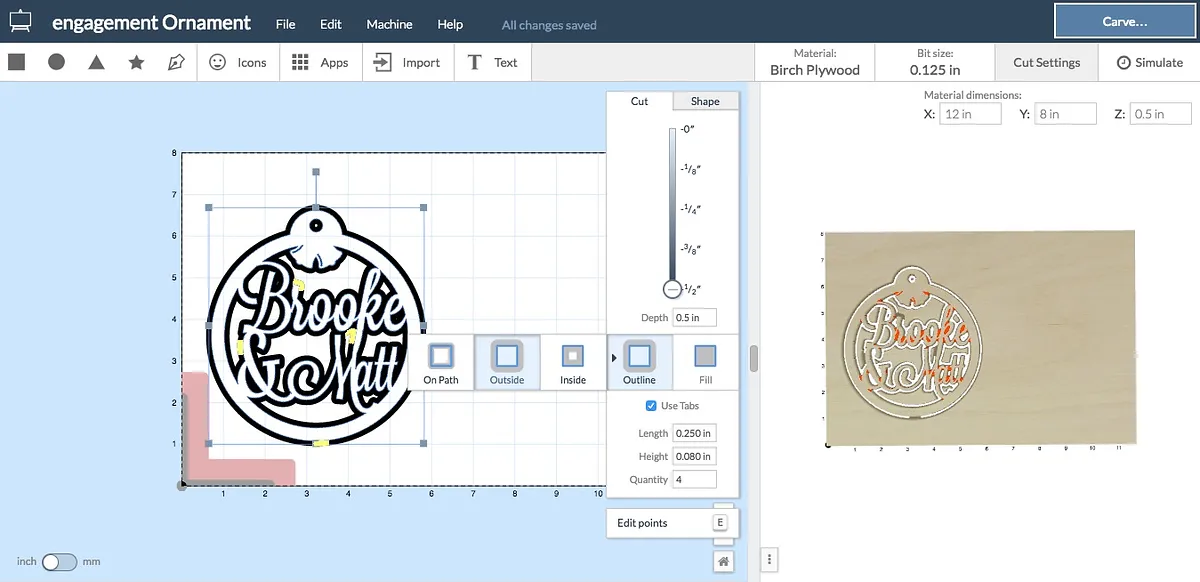
Once combined, changed the "fill" setting to "outline" and "outside".
Estimated time: 1 minutes
Select material and bit
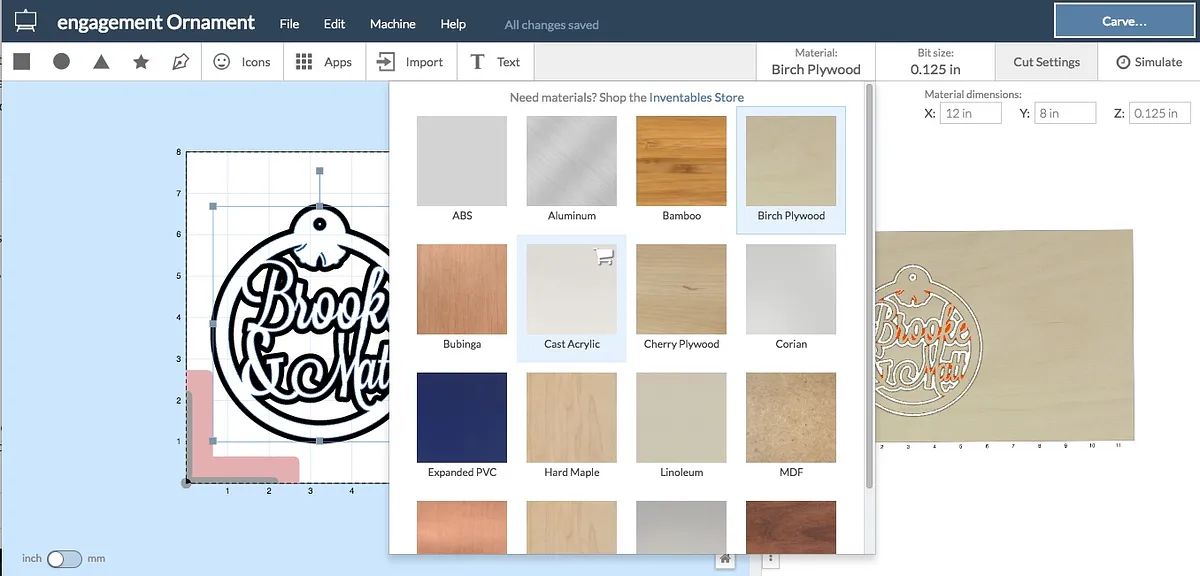
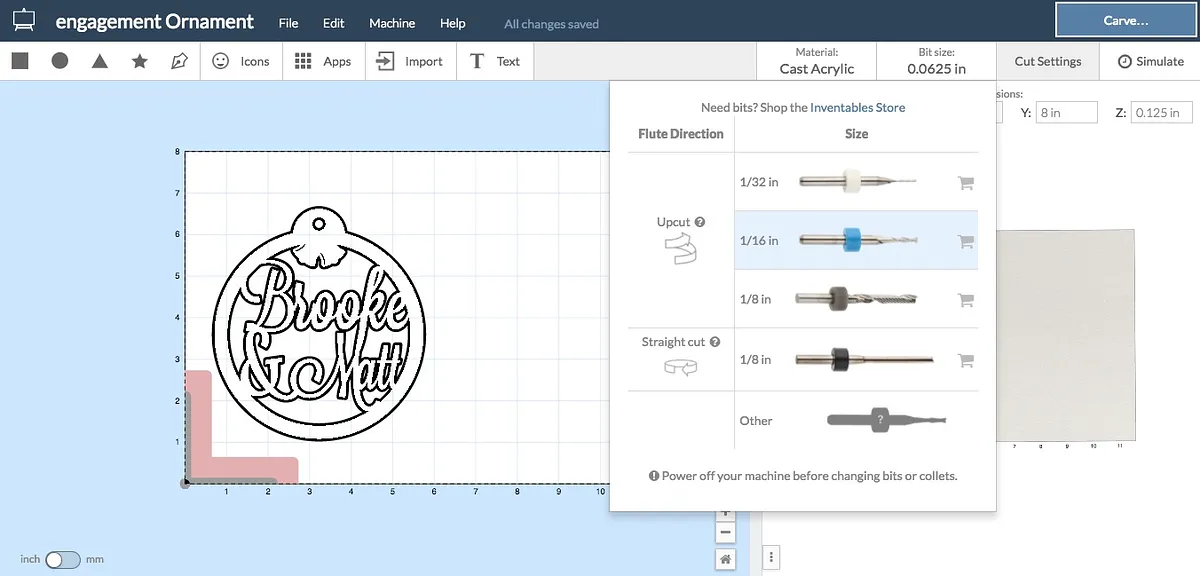
Now that the design is done, select the material and bit you would like to use. I have been using the 1/6" upcut fish tail but (blue collar) and glitter acrylics.
Make sure to:
- Change the bit in Easel.
- Change the material in Easel
- Change the material dimensions in Easel
Changing these settings will effect how your project is cut out.
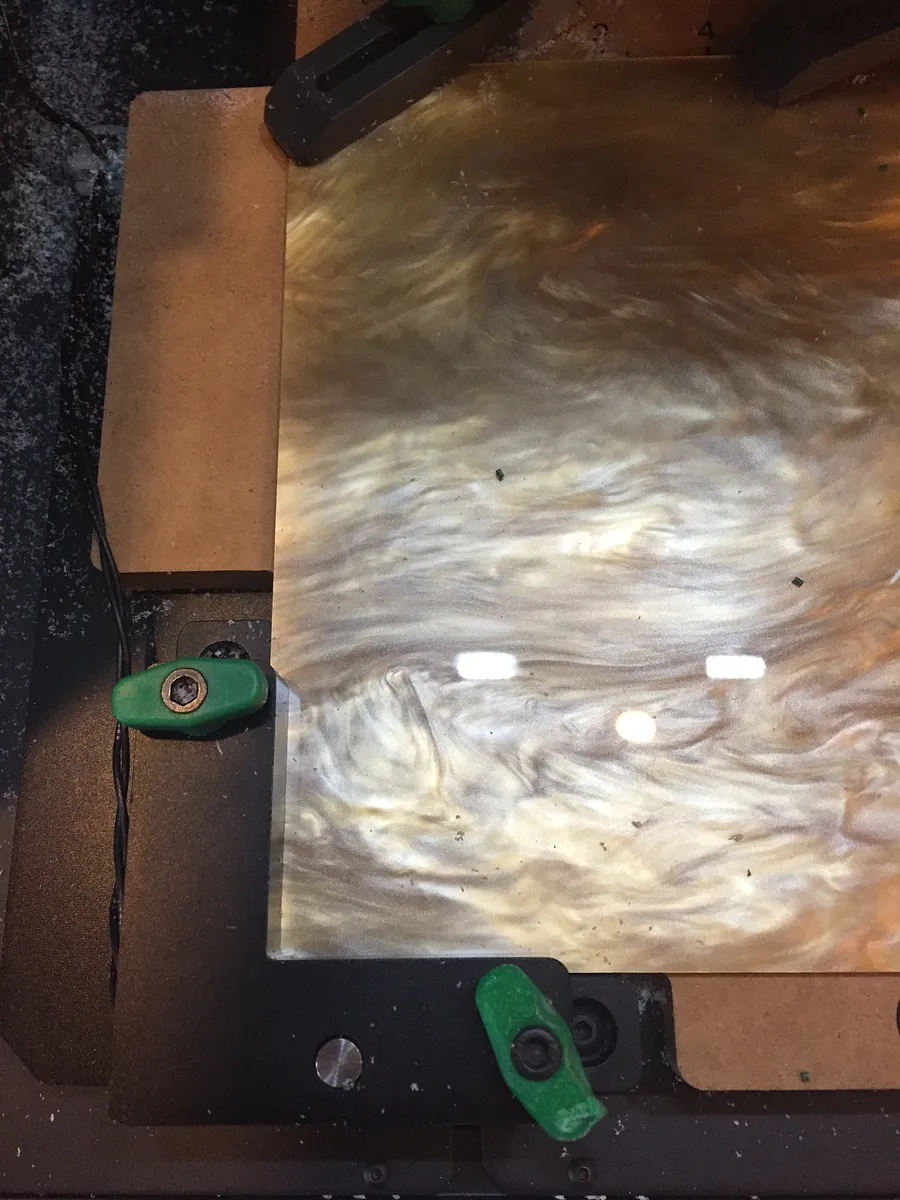
I also going to use double sided tape to secure the material down to the waste board so I do not have to use tabs. You can disable tabs in the shape panel.
Estimated time: 1 minutes
Simulate and carve
Click the "simulate" button to make sure your project will cut the way you are anticipating. If you see red, don't panic. Red parts will not cut. You can either make the design larger, or if you are happy with the simulated carve, ignore the red areas.
After any final adjustments, you are ready to carve!
Estimated time: 10 minutes
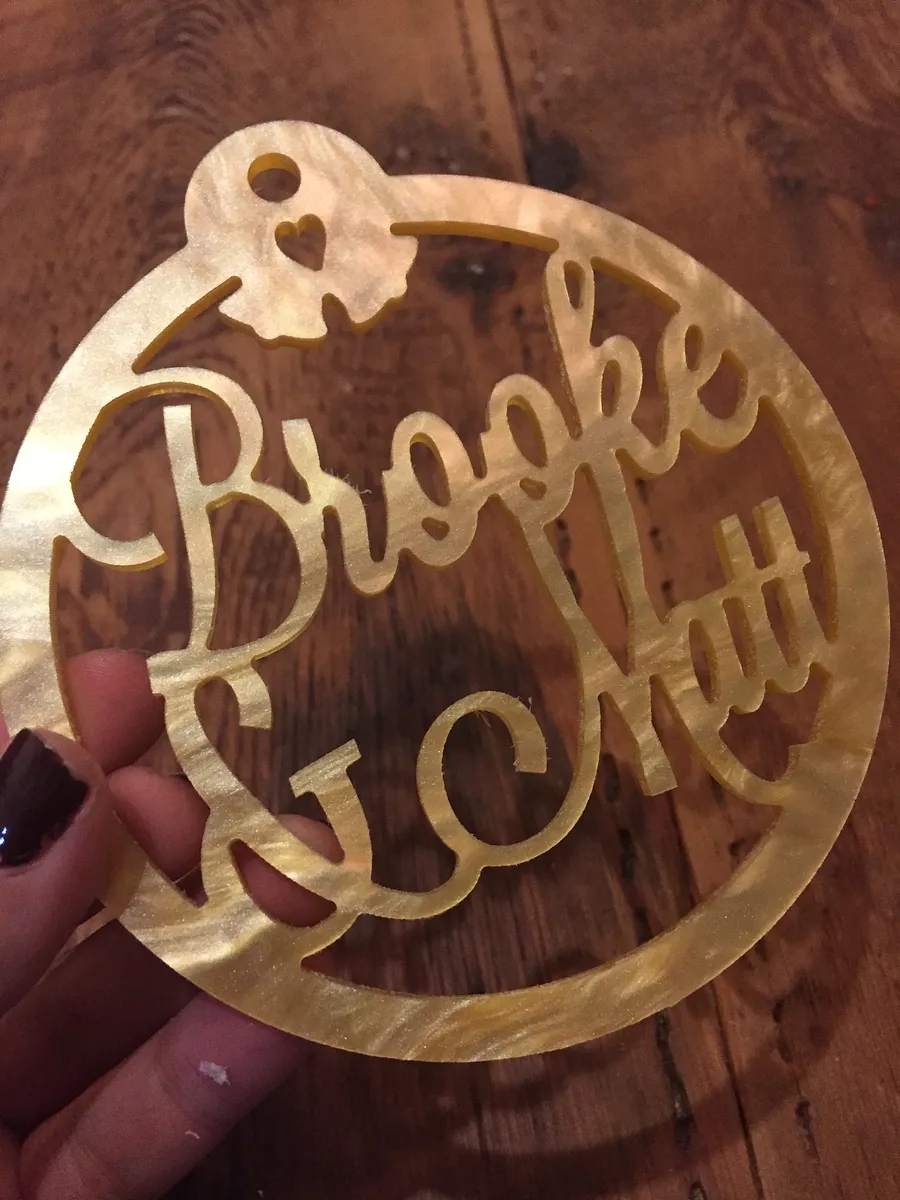
Share your creations!
If you use the template to make a design, please share it on this "forum thread":https://discuss.inventables.com/t/holiday-ornament-template/30806
Estimated time: 1 minutes



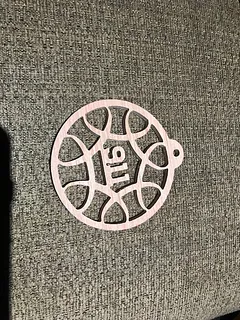



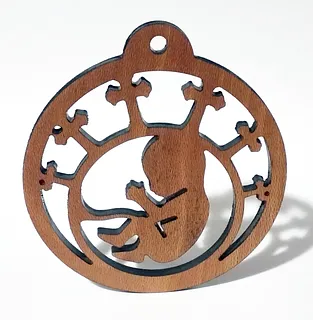
Comments
says the project is not found error 404
Andrew · December 05, 2016
Please fix the template link. Thanks!
Terry K · December 05, 2016
Hi there, I'm about to do this proeject at school but the template link doesn't work. Thanks
anton ritzuPro · December 05, 2016
Hi Everyone, I apologize for the error, if you try it now it should work!
Sam Alaimo · December 06, 2016
Thanks Sam!
Terry K · December 06, 2016
Enjoyed your tutorial. Found the visual aids helpful. A thought would be to use a felt board (old school), or vinyl cutouts (done on Xcarve?) would be cool. [waiting to receive my Xcarve -- newguy about to be begin the adventure]. tHANKs
Hank Wilson · December 21, 2016
Can you show how to do photos please? I'm a Real Bearded Santa, love Christmas and have some great ideas. I do not own a machine yet but looking to buy a phironia :').
Von Redman · March 01, 2017
Hi Von, Best tutorial is the video linked in the first step. I suggest watching that. The other instructions should go over the basics.
Sam Alaimo · March 02, 2017
I have been making these with my students, and some are amazing! I am having trouble however with the acrylic breaking, especially when trying to cut holes in letters such as an O or R. Any suggestions that may help are greatly appreciated!
Laura SpurwayPro · December 13, 2017
Hey there. Nice work. Any way we could speed up the video? Lol. No, seriously, it goes way to fast for those of us just learning and don’t use this software everyday. Any help would be appreciated. Thanks.
RODNEY MYERS · November 19, 2018
Disregard my comment, I was watching the overview and found the actual video of how to make the ornaments under instructions. It’s a learning process.
RODNEY MYERS · November 19, 2018
I love this!! Trying very hard to make this work. Any tips on securing thin acrylic or thin wood? It keeps rising up on me and damaging the design. :( Any help would be much appreciated! Thanks in advance. :)
Jaime Chanter · November 26, 2018
beautifully awesome! A+ -going to share this with my students. Thanks!!!!
Jackie KanePro · November 03, 2019
having trouble with the "fill' seems to go away as I have copied to a new project or was never there?
Travis Raymond · November 03, 2020
i am new to X-Carve and inventables. In this ornament video. It was mentioned about double sided tape to keep the pieces from flying around. Can I get a link to the video in question please. thank you Shawn
Shawn Morris · November 26, 2020