Give a pocket a finished, hand-worked surface instead of a flat floor. Pick a texture for any pocket, and Easel carves it with a ballnose bit in its own pass after the pocket is cleared: chip carving, dragon scales, basket weave, Japanese wave patterns, fluted reeding, and dozens more.

Floor Textures are an Easel Pro feature. Anyone can add a texture and preview it; carving or downloading a textured design needs Easel Pro.
How to Use
- Select a shape and set its cut to Pocket in the Cut tab.
- Open the Pocket Texture menu under the cut path and pick a pattern. The pattern draws right on the shape in the design canvas.
- Click the gear beside the menu to fine-tune it.
- Carve as usual. The texture carves in its own Texture pass with your texture bit, after the pocket is cleared.
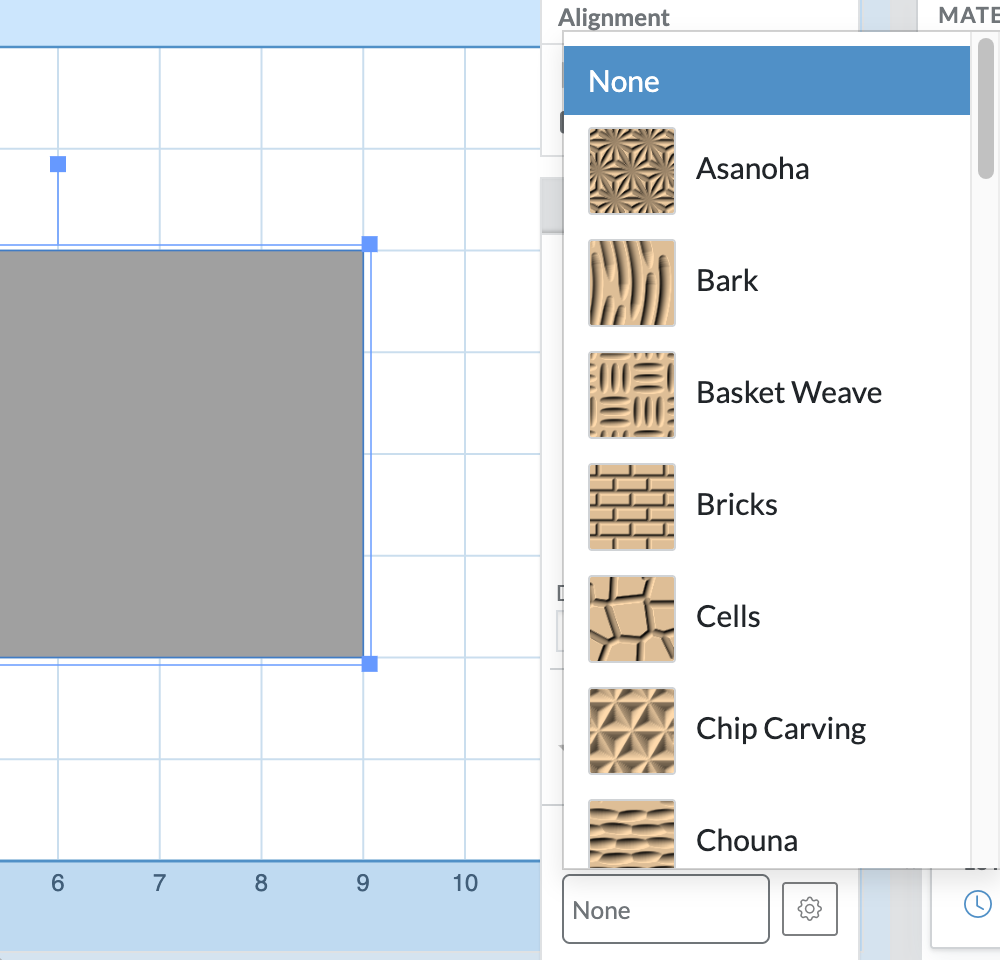
40 Patterns
Textures come in a few families:
- Lattices like Chip Carving, Honeycomb, Dragon Scales, Seigaiha, and Asanoha repeat a crisp geometric motif edge to edge.
- Grooves like Flutes, Basket Weave, Herringbone, Bark, and Wood Grain run lines across the floor.
- Hand-tool finishes like Hand Carved, Chouna, and Hatsuri lay down rows of overlapping gouge and adze scoops, each one a little different.
- Reliefs like Reeded, Coves, Ribbed, Dunes, and Faceted sculpt the whole floor into one continuous surface.
- Custom Shape repeats one of your own shapes across the floor.
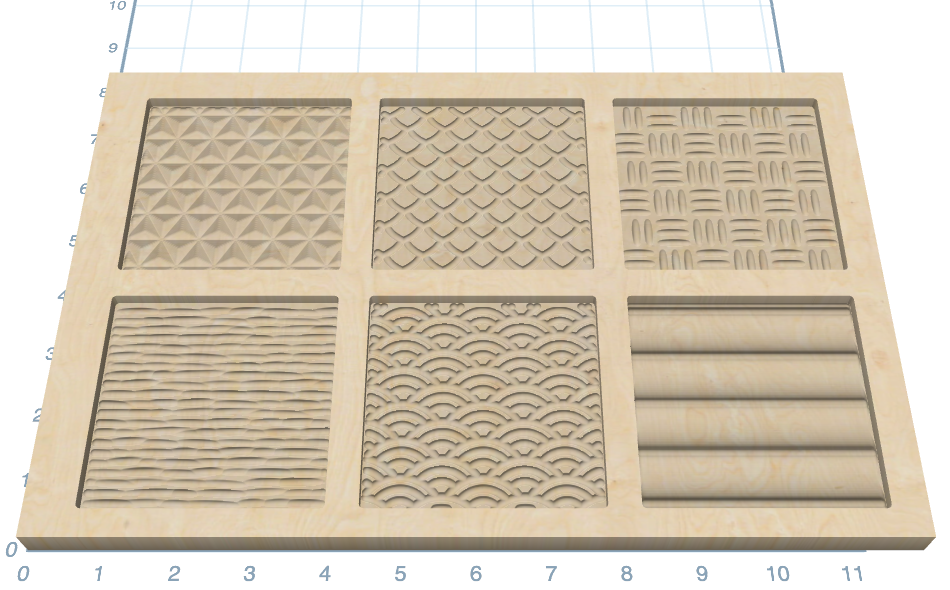
Tuning a Texture
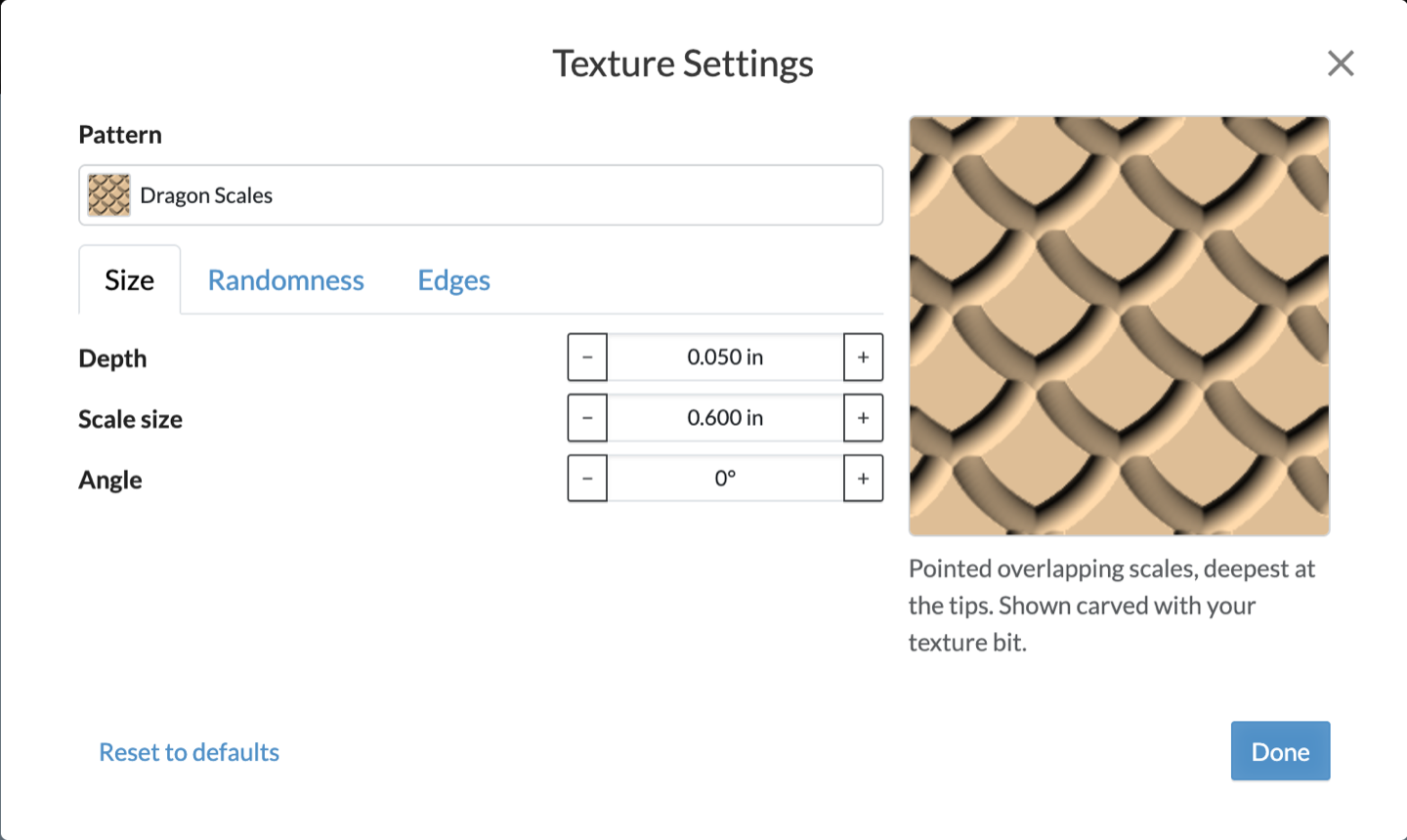
The gear opens Texture Settings, with a live preview carved with your texture bit.
- Size sets the depth, the size of each element (a chip, a scale, a brick), and the angle of the pattern.
- Randomness adds hand-made irregularity. Variation loosens the pattern, Shallowest cut lets some strokes run shallower than others, and Shuffle rolls a new arrangement.
- Edges tapers grooves in or out at their ends, and adds extra distance from the pocket walls.
Reset to defaults puts everything back.
The Texture Bit
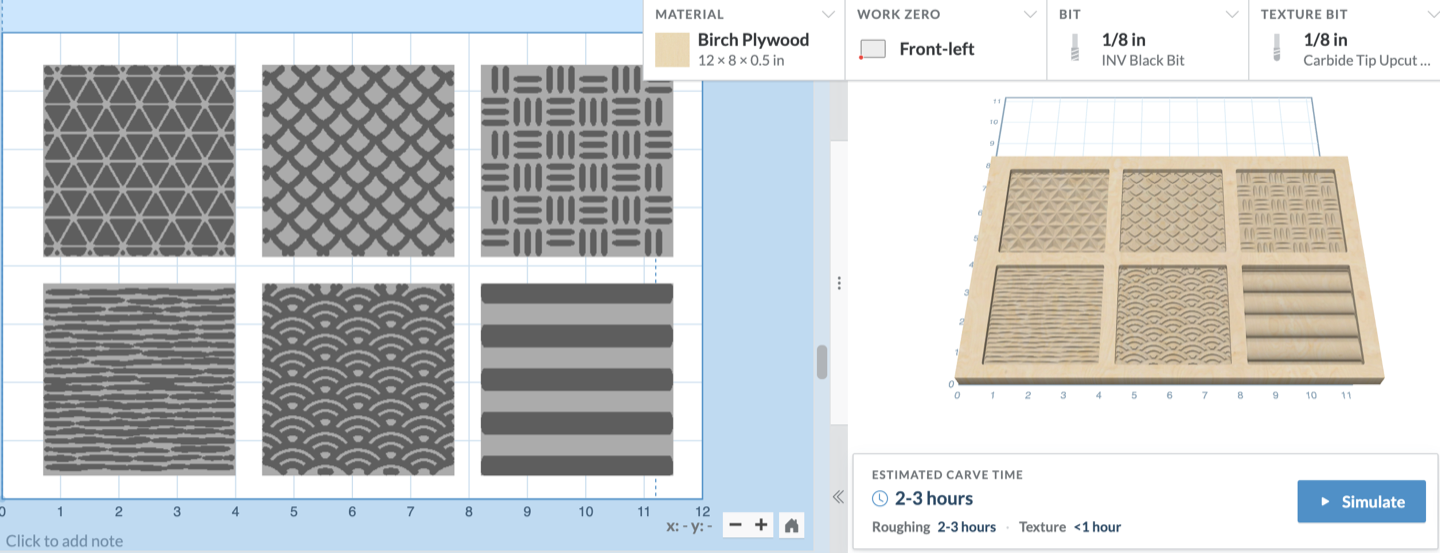
Textures are carved with a ballnose bit, picked under Texture Bit in the bit settings and defaulting to a 1/8" ballnose. A smaller ball picks up finer detail; a larger one carves faster. Your design shows the pattern as you build it, and the estimated carve time breaks out the texture pass on its own.
Good to Know
- Textures go on pockets. Outlines, group cutouts, and 3D carves don't take a texture.
- Textures can be carved onto 0 depth pockets to add a texture to a flat surface.
- The texture pass runs after the pocket is cleared, so swap to your ballnose when Easel asks. You can also carve or download the texture pass on its own.
- Every shape keeps its own texture, so one design can mix as many patterns as you like.
Give it a try on your next sign, box lid, or coaster, and let us know what you make with it.