Keep the apps you use most one click away. Heart up to ten apps in the App Library, and they appear in the Apps menu in the left toolbar every time you open a project.

How to favorite an app
- Open the Apps menu in the left toolbar and choose More Apps.
- Hover over any app in the App Library and click the heart in its corner. The heart fills in, and the app joins Favorites at the top of the library.
- Click a filled heart to remove an app from your favorites.
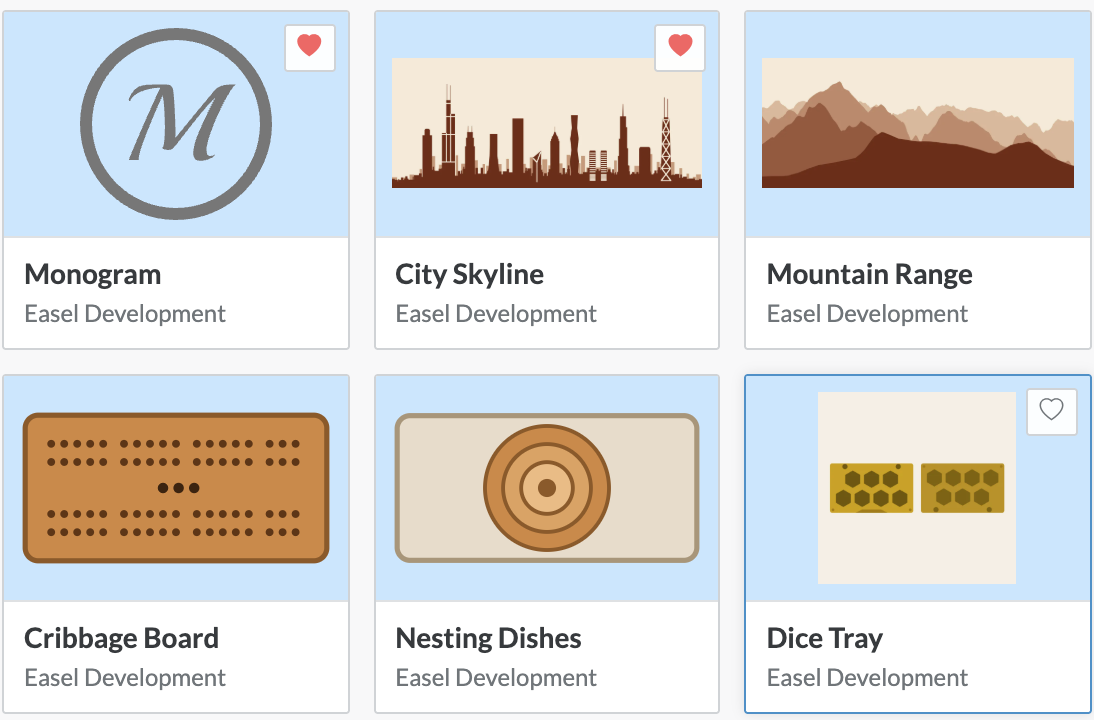
Favorites are saved to your Easel account, so they follow you to any computer you sign in on.
Your favorites in the Apps menu
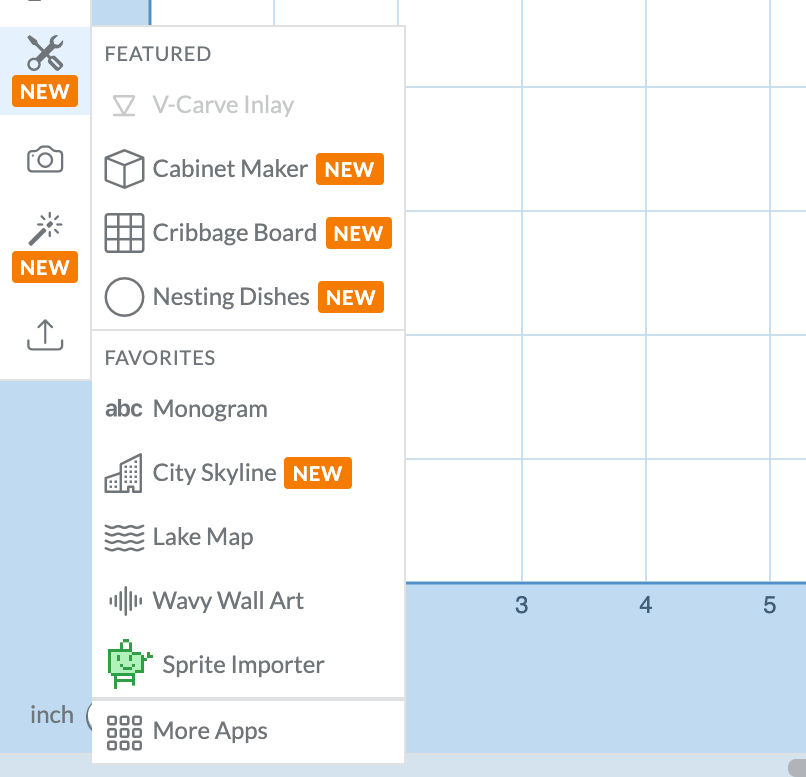
The Apps menu now opens with two lists: Featured, a handful of apps we've picked out, and Favorites, the apps you've hearted. Click any of them to start it right away, or choose More Apps at the bottom to browse everything.
A refreshed App Library
The App Library got a cleanup too:
- Featured and Favorites sit at the top, ahead of Generators, Tools, and Utilities.
- The category list stays in place while you scroll, so you can jump between sections from anywhere.
- Search filters every section at once, favorites included.
Good to know
- You can favorite up to ten apps. Once you reach ten, remove one to make room for another.
- Favorites appear in the order you added them.