Your custom bits can now show what they actually look like. Add a photo when you create a custom bit, and it appears on the bit's card in your Toolbox, so the bits you've added are as easy to tell apart as the catalog ones.
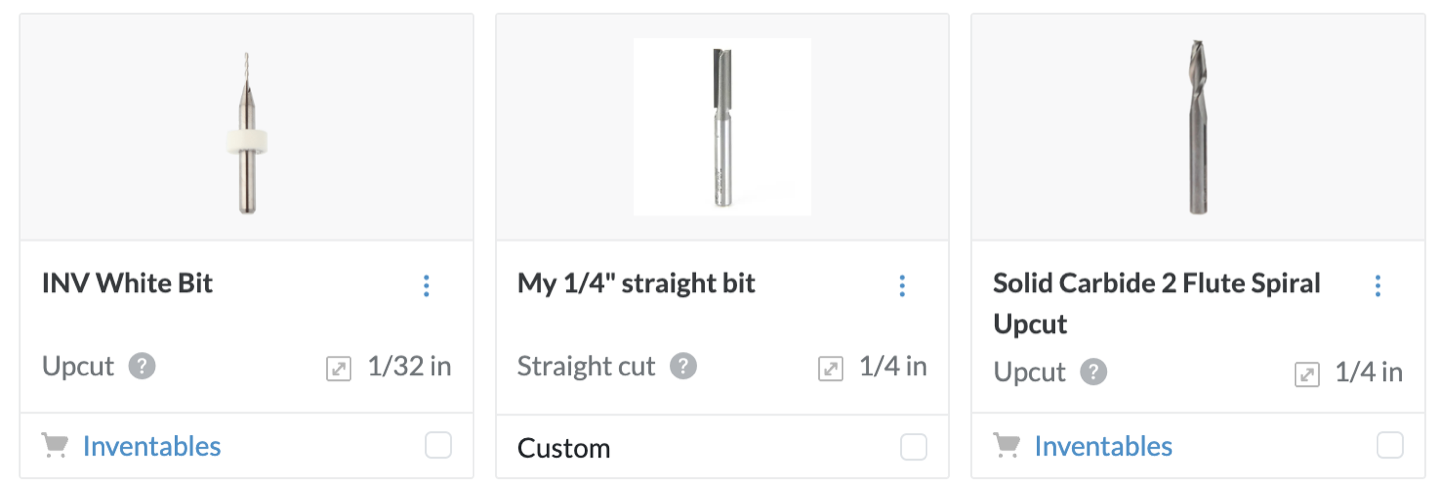
How to use
- Open Toolbox from the top menu, or choose + Add a Bit at the bottom of the bit menu.
- Click Add Bits and pick Custom.
- Fill in the name, bit type, and cutting diameter, then click Upload picture under Image and choose a photo of your bit.
- Check the preview and click Save.
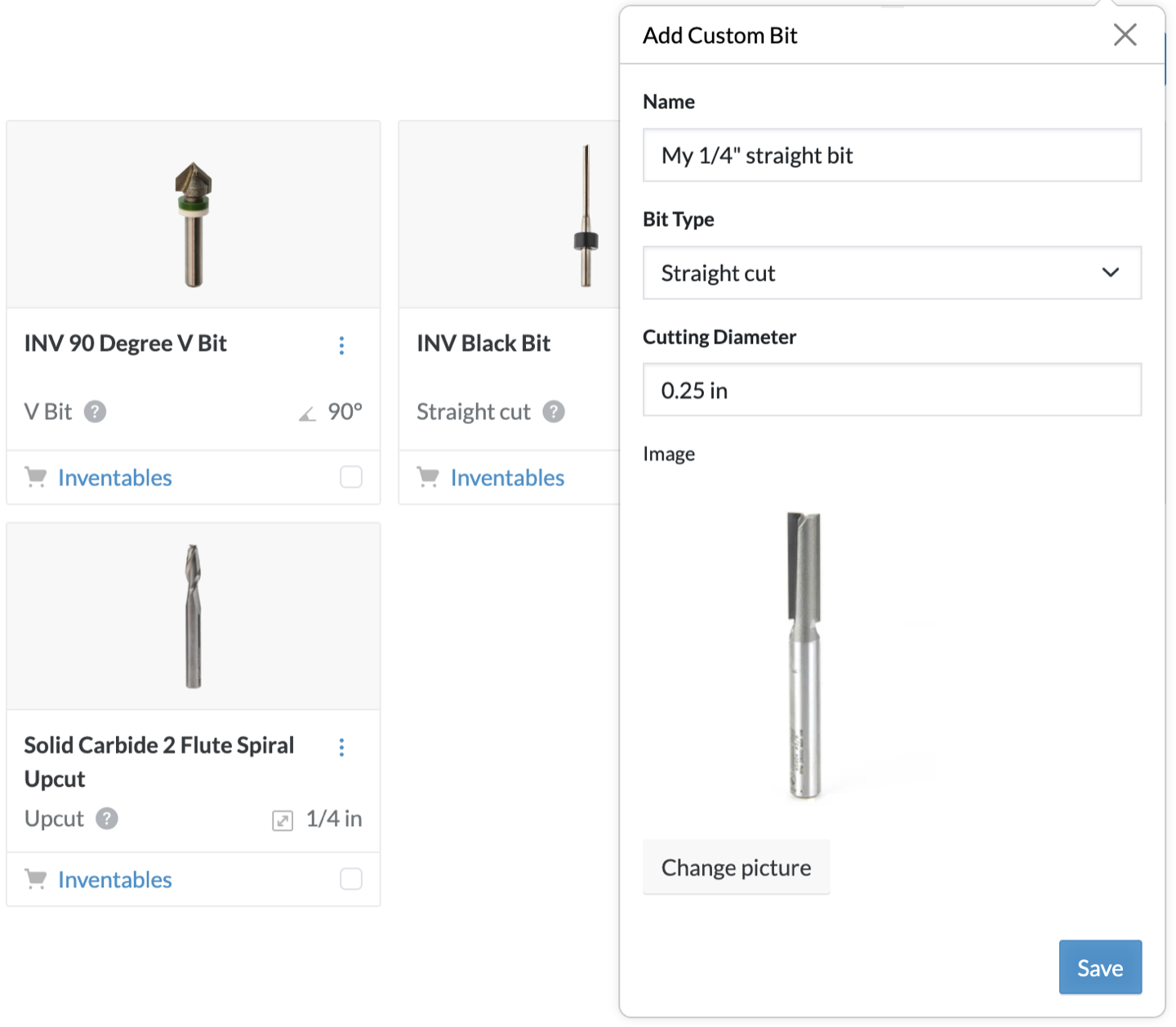
Change a photo
To swap a photo, open the bit's ⋮ menu in the Toolbox, choose Edit, and click Change picture. The new photo replaces the old one when you save.
Good to know
- Photos can be JPEG, PNG, or WebP, up to 10 MB.
- A tall, narrow shot of the bit on a plain background fills the card best. Easel resizes every photo to fit the card.
- Custom bits without a photo keep showing the drawing for their bit type.
- Removing a custom bit from your Toolbox deletes its photo too.